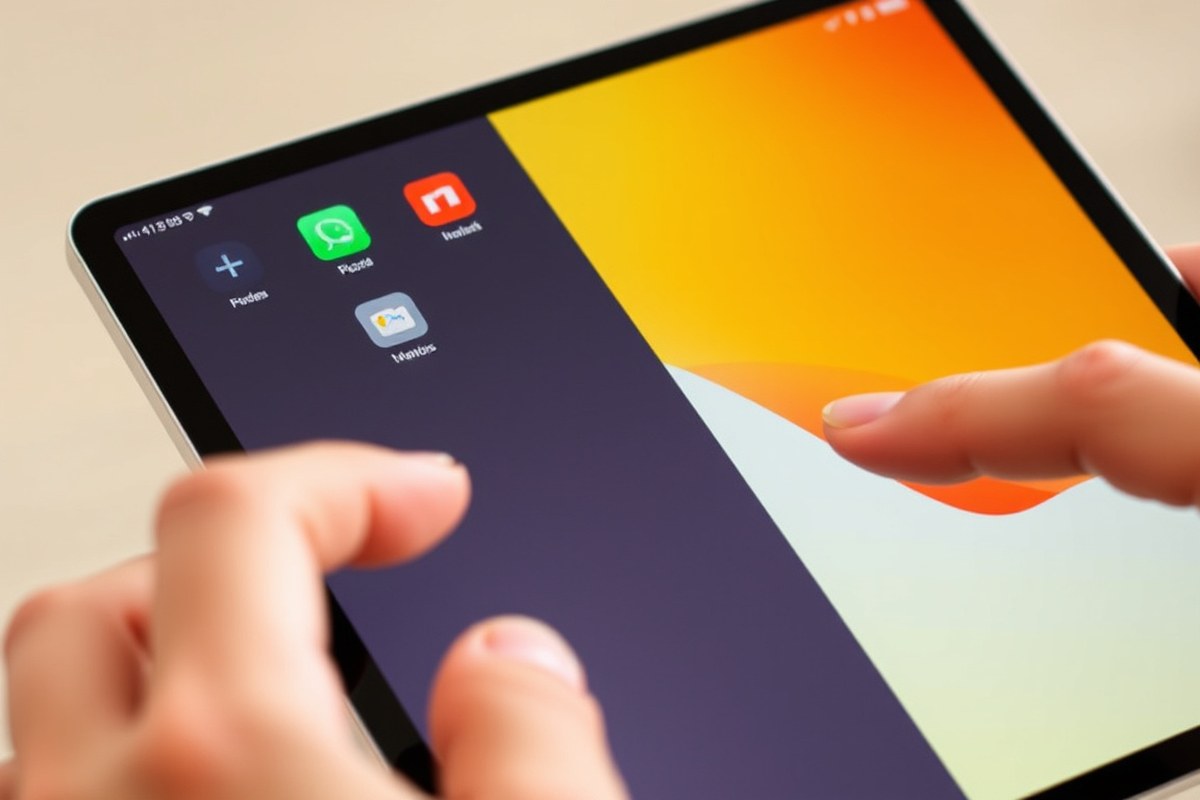
How to Get Rid of Split Screen on iPad: Simple Steps for Fast Results
To close Split Screen on your iPad, drag the black divider bar between the two apps all the way to either the left or right edge until one of the apps disappears. This straightforward step shuts off the split view, returning you to a single app in full-screen mode. You can also adjust split screen through multitasking buttons and gestures designed for user convenience.
This information is helpful for anyone struggling with accidental split screen activation or wanting to disable multitasking features. You’ll learn how to close floating windows, handle popular apps like Safari and Messages, troubleshoot stuck screens, and adjust settings based on your iPad model and iPadOS version.
Key Takeaways
- Use the Multitasking button (three dots) atop the screen to switch from Split View to full screen quickly on your iPad.
- Drag the vertical divider between apps fully to one side to close Split Screen on older iPad models without iPadOS 17.
- Understand Split View, Slide Over, and full screen modes to manage multitasking and close Split Screen in apps like Safari and Messages.
- Close floating Slide Over windows by swiping them off the screen or tapping the Multitasking button to hide these windows.
- Disable Split Screen and multitasking features in iPad settings or enable Stage Manager on newer iPad Pro and Air models to avoid Split View.
- If the iPad gets stuck in Split Screen, try closing apps via the dock or restart the device to restore normal display operation.
How to Get Rid of Split Screen on iPad Quickly

To leave Split Screen mode on your iPad and use one app in full screen, focus on the black bar separating the apps. This divider lets you resize the apps’ window space. Pulling this bar fully to the left or right closes one app and maximizes the other. You can also tap the multitasking icon, which appears as three dots near the top center, to close or switch the split layout.
The black divider bar appears as a vertical line between the two apps. When you tap and hold the gray controller on this bar, you can drag it horizontally. Pushing it fully to the left closes the left app and keeps the right app full screen, while dragging it to the right closes the right app and keeps the left app full screen. This process disables Split View by eliminating the second app. This approach works on all iPad models that support Split Screen, including older devices.
Using the Multitasking button gives you more options. Tapping it reveals buttons to switch between full screen, Split View, and Slide Over modes. Choosing the full screen option closes the second app, returning you to a single app view. This is useful when dragging the divider is difficult or if you prefer a tap-based method.
- Locate the black divider bar between the two apps on your screen.
- Tap and hold the gray controller on the divider bar.
- Move the divider bar entirely toward the left to shut the app on the left side, or slide it all the way to the right to close the app on the right side.
- Release the divider when it reaches the screen edge to close the app on that side, leaving the remaining app full screen.
- Alternatively, tap the three-dot Multitasking button at the top center of the screen.
- Select the full screen button from the menu to close the secondary app and exit Split View.
- Check that the app you want to keep is now occupying the full screen.
Dragging the divider bar is usually the fastest way to get rid of split screen. It only takes a second and feels intuitive when you want to focus on one app. The Multitasking button method adds flexibility if you don’t want to drag or when managing complex multitasking configurations. Both methods close one app by effectively hiding it and disabling Split View, so the important app fills the entire screen again.
Understanding Split View, Slide over, and Full Screen Modes

IPad multitasking offers three main modes: Split View, Slide Over, and Center Window. Each serves a different purpose and uses distinct gestures to help you switch between apps or use multiple apps at once. Understanding their differences will help you decide which mode fits your needs and how to manage them smoothly.
Split View divides your screen into two active apps side by side. You can resize each app by dragging the vertical divider bar between them, allowing a flexible 70/30 or 50/50 layout. Slide Over puts a smaller floating app window on top of your primary app, which you can move to the left or right side. Center Window, available in some iPadOS versions and apps like Mail, opens a smaller panel in the middle of the screen without changing the main app’s size. The following table compares Split View, Slide Over, and Center Window to clarify their features and when to use each mode:
| Feature | Split View | Slide Over | Center Window |
|---|---|---|---|
| Number of Active Apps | Two, side by side | One floating over one full-screen app | One small panel over one full-screen app |
| Screen Space Used | Approximately 50%-70% per app, adjustable | About 30%-40% width, can be moved left or right | Centered panel, smaller than Slide Over |
| Gestures to Activate | Drag app from Dock to left or right screen edge | Swipe up from bottom to open Dock, then drag app to center | Tap an app’s multitasking button, then select Center Window |
| Gestures to Dismiss | Drag divider bar fully to one side to close one app | Swipe floating window off right or left edge of screen | Tap outside the panel or close button |
| App Interaction | Full interaction in both apps simultaneously | Floating app overlays primary app, interactive | Small panel focused on part of the app |
| Common Use Cases | Comparing documents, multitasking between apps | Checking messages or references while working | Quickly glancing at details without switching apps |
You control these multitasking modes mainly through dragging gestures. To resize apps in Split View, tap and drag the vertical handle between the two apps. This changes the width ratio but not below about 30% or above roughly 70% of the screen width for a single app. For Slide Over windows, drag the handle bar at the top to slide it left or right. To convert Slide Over into Split View, drag the Slide Over window’s handle down slowly until it splits the screen.
To dismiss a Slide Over window, hold the small control bar at the top and slide it off the screen edge, this keeps your main app in full screen without interference.
Not all gestures are fully customizable, but you can adjust certain multitasking behaviors in iPad Settings under Home Screen & Dock → Multitasking. Turning off “Allow Multiple Apps” disables Split View and Slide Over entirely, reverting you to full-screen apps only. This setting matters if you find multitasking modes confusing or distracting.
Split View suits multitasking when both apps need your full attention side by side, like reading and taking notes. Slide Over works well for quick references or chat windows without losing sight of your main app. Center Window offers a focused view that doesn’t interrupt your workflow.
Using the Multitasking Button and Gestures to Manage Split Screen
You can manage Split View and Slide Over on your iPad using the Multitasking button and simple gestures. The Multitasking button lets you switch between modes, adjust your app layout, or close the split screen. Gestures allow you to close smaller apps and switch apps within Split View without leaving the multitasking interface.
Accessing the Multitasking Button
The Multitasking button appears as three dots centered at the top of your app window. It controls how your apps display side-by-side or on top of each other. Tapping it reveals options to switch between Split View, Slide Over, and full-screen modes. Here’s how to use the Multitasking button to manage your split screen apps:
- Open one of the apps you want to display.
- Tap the Multitasking button (three dots) at the top center of the screen.
- Select “Split View” to place two apps side by side or “Slide Over” to overlay a smaller app on the side.
- To add an app to Split View or Slide Over, open the Dock, tap and hold the second app’s icon, and drag it onto the screen.
- To place an app into Split View, drag the secondary app from the screen edge toward the middle, either from the left or right.
- Tap “Full Screen” from the Multitasking menu to close Split View and return the app to full screen.
The Multitasking button helps avoid accidental opening of Split View by clearly showing your multitasking options. Knowing these controls prevents confusion, especially in apps like Safari, where it frequently happens.
Closing Apps with the Divider and Gestures
The vertical divider between split screen apps allows you to adjust or close the split. Drag the divider fully to one side to close the app on that side and return to single app full-screen mode. In Slide Over mode, you can use a swipe gesture to close the smaller floating app:
- Swipe the Slide Over window off the screen to the right to close it.
- Swipe left from the right edge of the screen to bring the Slide Over app back.
Closing Split View or Slide Over with these gestures is fast and intuitive. To adjust app sizes in Split View, drag the divider left or right and release when you reach the desired app width. You can do this anytime during multitasking.
Switching Apps in Split Screen
You don’t have to close Split View to change the apps displayed side-by-side. The Dock and multitasking features let you quickly swap apps in either pane.
- Open the Dock by swiping up gently from the bottom of the screen.
- Tap and hold an app icon in the Dock.
- Drag the icon to the left or right pane of your split screen.
- Release to replace the current app in that pane with the new one.
This method lets you keep your multitasking setup while changing apps on the fly. You can repeat this process to cycle through different apps within Split View without closing the multitasking layout or interrupting your workflow.
Closing Split Screen in Popular Apps Like Safari and Messages
Closing split screen varies slightly by app, but the general approach is to drag the divider or use multitasking controls specific to that app. This lets you fully exit Split View in Safari, Messages, Facebook, or other apps and return to a single full-screen window. Removing the split keyboard also involves a quick gesture to merge it back into one keyboard.
Exiting Split Screen in Safari
Safari allows viewing two web pages side by side using Split View. To close one side and exit split screen, drag the dividing line completely to the screen edge. This action merges all tabs into a single window, eliminating the split layout. It’s a quick solution that restores the full display for your browsing.
- Locate the thin gray divider between the two Safari windows.
- Touch and hold the divider until it becomes responsive.
- Slowly slide the black divider bar toward the edge of the screen corresponding to the app you want to shut down, either left or right.
- Release the divider once it touches the edge of the screen.
- Safari will then merge all tabs into one window, ending the split screen.
Closing Messages from Split View
Messages displays well in Split View but closing it requires similar steps to Safari. Drag the multitasking divider fully to one side to dismiss the Messages window. Alternatively, using the multitasking button to switch views also lets you exit the split screen. This lets you focus on one app at a time without separate windows cluttering the screen.
- Find the black vertical divider separating Messages from the other app.
- Tap and hold the divider bar.
- Drag it all the way to the left or right edge until the Messages pane disappears.
- Release the divider to exit Split View.
- Optionally, tap the multitasking button (three dots) at the top center of the Messages window and select “Full Screen” to close the split.
Handling Split Screen in Facebook and Other Apps
Facebook and many other third-party apps support Split View on iPad but might respond slightly differently. When you see Facebook in split screen, dragging the divider to the edge usually closes one side. A floating window can appear; temporarily converting it to split screen helps you close it completely. Multitasking controls can also help switch apps back to full screen.
- Identify the divider between Facebook and the other app or floating window.
- Press and hold the divider to activate drag mode.
- Slide the divider to the screen edge to close the less-used app or Facebook pane.
- A floating window covering Facebook should be dragged to the right or left, then converted to split screen using the multitasking button.
- After converting, drag the divider fully to end split screen and restore full screen Facebook.
- Use the multitasking button (three dots at top center) to choose “Full Screen” for a quick exit.
Removing the Split Keyboard Layout
The split keyboard lets you type with thumbs on each side but can get in the way. To merge the keyboard back to a single full-width layout, a simple pinch gesture is effective. Alternatively, a keyboard control button can reset it. This returns the keyboard to the standard bottom-center position on your iPad screen.
- Place two fingers on the split keyboard halves.
- Pinch your fingers together as if zooming out, moving both halves toward the center.
- The keyboard will merge into a single full-width keyboard at the bottom of the screen.
- When pinching doesn’t work, tap and hold the keyboard button in the bottom right corner.
- Select “Dock and Merge” from the menu that appears to restore the full keyboard.
How to Close Floating and Slide over Windows on iPad
Floating Slide Over windows on your iPad allow you to multitask with a small app window that floats above your main screen. You can close these windows or temporarily hide them without exiting Split View, which helps keep your workspace organized and focused.
To close a floating Slide Over window completely, you swipe it off the screen. If you want to keep the app ready but out of the way, you can hide it by sliding it to the right side of the screen, turning it into a narrow tab that can be reopened with a swipe. Another option is to convert the Slide Over window into part of a Split View by dragging the app’s handle to the edge of the screen, then adjusting the divider as needed.
- Swipe the floating window off the screen: Place your finger on the top handle of the Slide Over window and swipe it to the right until it disappears. This closes the floating window temporarily and hides it as a tab on the right edge.
- Swipe to bring back the hidden Slide Over app: When you want to reopen the app, swipe left from the right edge of the screen. The Slide Over window will return without interrupting the current Split View layout.
- Switch Slide Over to Split View: Hold the top grip of the Slide Over panel, then drag it to the left or right edge of your screen. When you release it, the app will dock beside your main app in Split View mode.
- Adjust the Split View divider: Drag the black divider bar between apps to resize both apps according to your preference.
- Close Slide Over by full exit: After converting to Split View, if you want to end multitasking completely, drag the divider all the way to the screen edge to close one app and return to full screen for the remaining app.
Hiding the Slide Over app by swiping it to the right doesn’t close the app; it keeps it active in the background so you can quickly reopen it without relaunching.
Disabling Split Screen and Multitasking on iPad
You can disable all multitasking features on your iPad to prevent Split Screen from activating by turning off the multitasking settings in the device’s Settings app. This stops the iPad from automatically launching Split View, Slide Over, and other multitasking interfaces, so apps open only in full-screen mode. To do this, open the Settings app, tap on “Home Screen & Multitasking,” then select “Multitasking.” Here, toggle off the option labeled “Allow Multiple Apps.” This disables Split View and Slide Over entirely, preventing accidental or unwanted multitasking.
Turning off multitasking in Settings is the most direct way to stop the split screen from appearing. When this option is disabled, dragging an app to the side no longer triggers Split View, and Slide Over windows will not appear or activate. This can improve focus and reduce confusion for users who prefer working with one app at a time. However, completely disabling multitasking also means you lose the productivity benefits of viewing or using multiple apps simultaneously.
On iPads with iPadOS 15, 16, or early iPadOS 17 versions without the Stage Manager feature, you can reliably turn off multitasking in Settings since this interface has seen little change. Starting with iPadOS 17 and compatible devices, enabling Stage Manager offers a different multitasking experience by allowing windows to overlap. Devices like the iPad Pro 12.9-inch (3rd generation onward), iPad Pro 11-inch (1st generation onward), and iPad Air (5th generation) can activate Stage Manager, replacing the classic Split View for managing app windows.
Keep in mind that disabling multitasking or switching to Stage Manager can affect your experience depending on your needs. Turning off the multitasking feature takes away the convenience of side-by-side apps but simplifies usage, which some may find helpful. On the other hand, Stage Manager brings a different multitasking style but requires compatible hardware and may have a learning curve. Not all iPad models support Stage Manager or multitasking toggles equally, so availability depends on your specific device and iPadOS version.
In summary, to fully prevent Split Screen from activating on your iPad, go to Settings > Home Screen & Multitasking > Multitasking and toggle off “Allow Multiple Apps.” If your device supports it and you’re on iPadOS 17 or later, consider enabling Stage Manager for a different multitasking method that excludes Split View. This disables traditional Split Screen but introduces new ways to manage multiple apps, so weigh the choice based on your multitasking habits and device capabilities.
Troubleshooting Stuck or Unresponsive Split Screen on iPad
Sometimes your iPad may become stuck in split screen mode and stop responding to gestures, making it hard to return to full-screen apps. This often happens due to software glitches, poorly optimized apps, or outdated iPadOS versions. Resolving the issue involves a few troubleshooting steps to restore normal operation.
To fix temporary issues quickly, force restart your iPad. For models with Face ID or no Home button, press and release the Volume Up button, then the Volume Down button, and then hold the Power button until the Apple logo is visible before releasing. For iPads with a Home button, hold both the Home and Power buttons together until the Apple logo appears.
After the device restarts, check if split screen gestures respond properly. Should the problem continue, verify that your iPad is running the latest version of iPadOS. Go to Settings > General > Software Update and install any available updates. New software versions often fix bugs related to multitasking features.
Next, review your multitasking settings. Head to Settings > Home Screen & Dock > Multitasking. Here you can disable options like Allow Multiple Apps, which controls split screen availability. Turning this off prevents accidental split screen activation but also limits multitasking capabilities.
- Force restart your iPad to clear temporary software issues.
- Update iPadOS to the latest version via Settings.
- Check Multitasking settings and disable split screen features if needed.
- Close apps that may be causing the issue by swiping them away in the app switcher.
- Reset all settings under Settings > General > Transfer or Reset iPad if problems persist.
Closing problematic apps by opening the app switcher (swipe up from the bottom and pause) and swiping up on each app may also help. Occasionally, an app may not properly handle split screen and cause it to freeze. Should none of these steps work, consider resetting all settings to restore default configurations without erasing data. Navigate to Settings > General > Transfer or Reset iPad > Reset > Reset All Settings, then confirm. This can resolve complex setting conflicts affecting split screen functionality.
Most issues are fixed by one of these straightforward actions. Performing a forced restart takes less than a minute and often restores responsiveness without data loss. Updating the software usually takes 10-30 minutes depending on your internet speed. Checking or disabling multitasking settings is immediate. The reset all settings option is a last resort since you’ll need to reconfigure Wi-Fi passwords and preferences afterward.
Managing Split Screen Multitasking Across iPad Models and iPadOS Versions
Most modern iPads with iPadOS support Split Screen multitasking, but availability depends on the model and OS version. Newer iPads with iPadOS 17 introduced Stage Manager, which changes how you multitask, potentially replacing Split View on compatible devices. Some third-party apps may not work well with Split Screen due to app design or developer restrictions.
IPad Models Supporting Split Screen
Split Screen multitasking is available on iPads running iPadOS 11 or later. This includes iPad Pro models, iPad Air from the 3rd generation onward, iPad 5th generation and newer, and iPad mini 5th generation and up. Older iPads that cannot update past iOS 10 or earlier do not support Split Screen.
Performance varies by device; for instance, Split Screen runs smoothly on iPad Pro models with M1 or M2 chips, while older iPads may lag or limit the number of apps you can open side by side. To check your device’s compatibility, go to Settings > General > About to see your model and installed iPadOS version.
Stage Manager vs Split View in iPadOS 17+
Stage Manager, introduced in iPadOS 17, offers a new way to multitask by letting you resize and overlap multiple app windows more like a desktop interface. It is available only on iPad models with the M1 chip or newer, such as the recent iPad Pro and iPad Air 5th generation.
When Stage Manager is active, it replaces Split View and Slide Over; you move between overlapping windows instead of fixed half-screen splits. To enable Stage Manager, open Settings > Multitasking & Gestures > Stage Manager and turn it on. You can drag windows to resize or stack, creating a more flexible workspace.
On iPads without Stage Manager support, Split View remains the multitasking method. Stage Manager may feel unfamiliar but can boost productivity on supported devices by handling more apps and window layouts simultaneously.
Third-Party App Limitations with Split Screen
Not all apps support Split View, especially those that require full-screen interaction like games or certain video players. Many third-party apps do allow Split Screen but may restrict functionality when in multitasking mode, such as disabling gestures or limiting content display.
App developers decide whether their apps support split screen, which means your experience can vary widely even within the same app category. For example, some productivity apps let you edit documents side by side, while others show a static view or force full screen.
Testing your frequently used apps is key. If an app won’t adapt to split screen, you will need to close the second app or switch to full screen to work uninterrupted.
Keep in mind that enabling Stage Manager requires a compatible iPad with an M1 or later chip; older devices will not show the option in Settings and must use Split View instead.
Step-by-Step Action Plan to Exit and Control Split Screen on Your iPad
Follow these steps to quickly get rid of Split Screen, understand its features, and manage multitasking for a smooth full-screen app experience.
- Start Now: Use the multitasking button (three dots) at the top center of the screen to tap the full-screen icon and close Split View. Confirm the app expands to full screen.
- Next 5 Minutes: Swipe the black divider bar all the way to the edge of the screen to dismiss one side of split screen. Check the screen returns to a single app view.
- Within 10 Minutes: Close Slide Over windows by swiping them off the right edge of the screen or tapping the small handle and selecting close. Verify only one app remains visible.
- After First Try: Disable multitasking by opening Settings > Home Screen & Dock > Multitasking and turning off “Allow Multiple Apps.” Confirm Split Screen cannot activate again.
- Within 30 Minutes: Force-close unresponsive split screen by swiping up from the bottom to open the app switcher and swiping the problem apps off the screen. Check that the iPad returns to home or a single app.
- Next Day: Practice common multitasking gestures, swipe up with three fingers to close apps or drag the app edges, to increase familiarity and prevent accidental Split Screen activation.
- Ongoing: Review and adjust multitasking settings based on your iPad model and iPadOS version for consistent control over Split View, Slide Over, and full-screen modes.
Frequently Asked Questions
How Do I Get My iPad Back to One Screen?
To get your iPad back to one screen, drag the black divider bar all the way to the left or right edge to close one app. This will return the display to a single full-screen app.
How Do I Get My iPad Back to Full Screen?
Simply tap and drag the black divider bar between apps to one side until one app closes, restoring full screen. This works the same way in apps like Safari when using split screen.
What to Do If My iPad Is Stuck on Split Screen?
Force close both apps by swiping up in the app switcher, then reopen the app you want in full screen. Restarting the iPad can also resolve stuck split screen issues.
How to Change Split Screen on iPad Back to Normal?
Tap the multitasking button with three dots at the top center and select full screen mode to return to normal. You can also drag the divider bar off the screen.
Can I Disable Split Screen on My iPad Permanently?
Yes, turn off multitasking in Settings > Home Screen & Dock > Multitasking to stop split screen from activating. This prevents accidental multitasking.
How Do I Move Apps Out of Slide over Mode?
Swipe the Slide Over window off the right edge of the screen to hide it, or drag the bar at the top to the left to dock it.
Final Thoughts
Getting rid of split screen on your iPad is straightforward once you know the right gestures and buttons to use. You can close split view by dragging the black divider all the way to the screen edge or tapping the multitasking icon to exit. Try practicing these actions with the apps you use most, like Safari or Messages, to quickly regain full screen control whenever split screen pops up unexpectedly.